- Discounts are set individually for a specific customer or collectively for customer groups.
1. The setting of a discount for one customer
- Find a specific customer in the administration and add them a discount, see the instructions in a video tutorial below.
- On the Discounts tab you can add discounts of the following type:
- Individual product price
- Product discount
- Product group discount ( about the product group you can read more in the help named Product group)
- Discount on the entire assortment
2. The setting of a discount for a customer group
- To set a discount for a customer group, you must create a group. If it isn't, the creation is described below in point A. If it's already created, skip to the B. point.
A. The creating of a customer group
- Find a customer you want to add to the customer group.
- In the Customer group field, you can enter any name, such as Group 1. This name will be offered to other customers after clicking in the Customer group field, then just confirm by clicking Add.
B. The setting of discount for a customer group
- You can set a discount for an entire customer group at any one customer account that is assigned to that group.
- When you assign a discount to one customer, the change will apply to all customers who are added to the customer group, see the video tutorial below.
3. Displaying the "retail prices" and the discount percentage for all products
1. First, you need to create a special customer group (for example "retail prices - all customers") in the Customers section
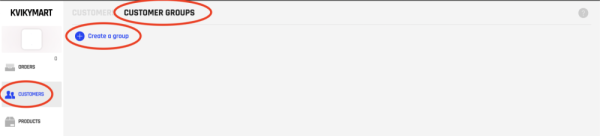
2. After you create the new customer group, assign higher margins to it.
To this new fakecustomer group, you will have to apply the same margin rules, but with the higher margins according to what "sale" you want to show up.
You don't have to change the General margins.
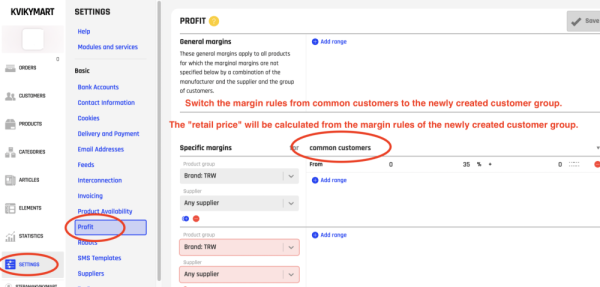
The price calculated for that fake customer group will be displayed as "retail" together with the percentage discount.
The discount will be calculated as a difference between the normal price, in which the product is sold, and the price with added fake margins (displayed as retail price).
The result will look like this:
