Discounts & Strikethrough Prices
There are several ways how to configure a discount in the way there is a strikethrough price displayed on a product.
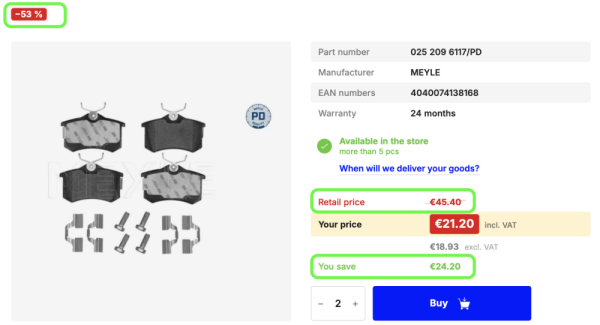
- Discount on an individual product
- Discount on all products or on a product group for a customer or a customer group
- Specific (lower) product price for a customer or a customer group
- Price surcharges for a customer group with lower surcharges than for retail customers
- Original price or Standard price of an individual product
- Manufacturer's Suggested Retail Price
- Virtual Strikethrough Prices
- Coupons
- Lowest price in 30 days
- The displayed strikethrough price will be always the highest price computed from any of these options.
- In Settings → Shopfront, you can enable/disable:
- Displaying of strikethrough prices by ☑️ Display Product Strikethrough Prices.
- Displaying of percentage discount tag by ☑️ Display Product Discount Percents Tag.
- Displaying of "You save" prices by ☑️ Display Product You Save Prices.
1. Discount on an individual product
- You can set an actual discount on individual products.
- Actual discount means it's a discount from the product's retail price – the price for unregistered users. It's a price with price surcharges applied to your purchase prices.
- The discount can be a percentage or a fixed amount.
- You eventually limit this discount to a specific users/users groups.
Discount configuration on a product detail
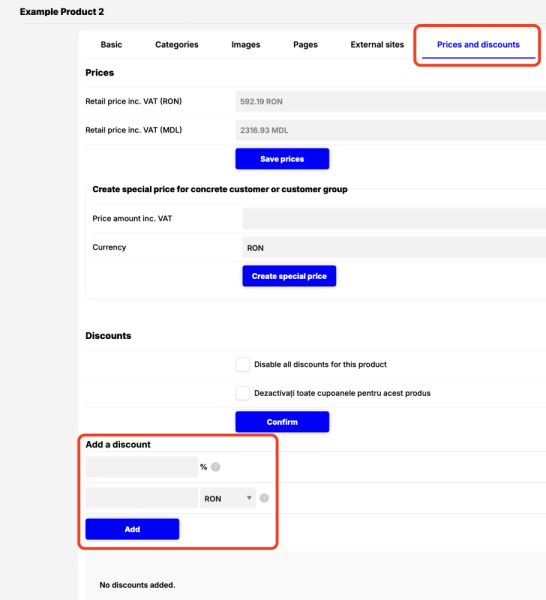
You can set such a discount on a product detail page on the Prices and discounts tab. You can limit the discount to a specific customer or a customer group there or keep the discount without limitation for all customers.
There is a Disable all discounts for this product checkbox on the product detail. When it is checked, no discounts will be applied for the given product. The price will be without discounts for any customer, even if the product is included in some product group that has a discount assigned.
Discount configuration on a customer detail
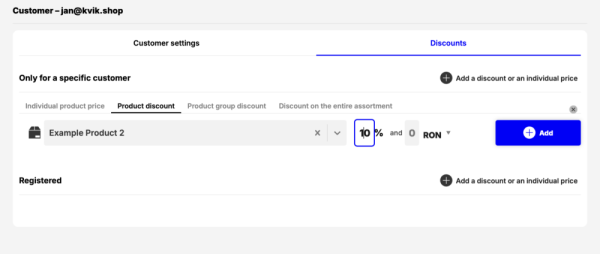
You can also set such a discount from a customer detail page on the Discounts tab. But from here you aren't able to set it unlimited for all customers. Only to the selected customer or theirs customer groups.
2. Discount on all products or a product group for one customer or a customer group
The configuration is in Customers in left menu → click on any customer → choose the Discounts tab.
You can configure a discount for that particular customer or for any customer group they belongs to.It can be all registered customers.
You can set the discount:
- on all products (entire sortiment)
- on a product group (e.g. brand ATE or break discs)
- on a individual product
- you can also set a specific fixed product price for that customer or a customer group
3. Specific (lower) product price for a customer or a customer group
At the same location as the previous point, you can set a specific price for a particular product for a particular customer or a customer group.
4. Price surcharges for a customer group with lower surcharges than for retail customers
In the Settings → Price Surcharge Rules, you can configure specific rules for a customer group.
This means different price surcharges for example for registered or VIP customers.
If these surcharges are lower than surcharges for a regular customers (retail prices), the shopfront also displays for these users a strikethrough price which will be the retail price.
5. Original price or Standard price of an individual product
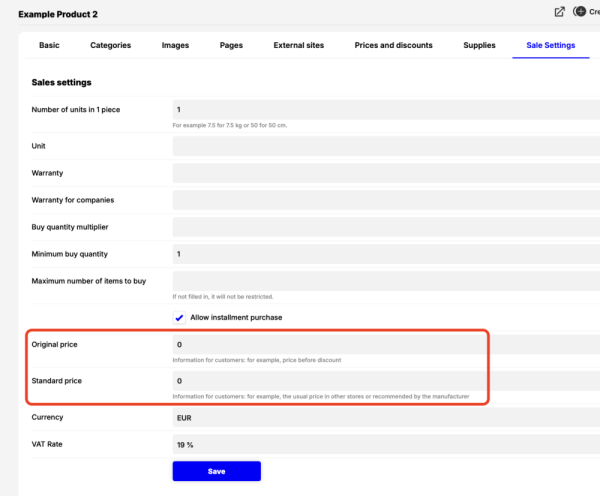
On a product detail page on the Sale Settings tab, you can set Original or a Standard price.
When one of these prices is set, the shopfront also displays this price as a strikethrough price if it's higher than the user's price.
6. Manufacturer's Suggested Retail Price
- Similar to Original and Standard price, you can also set manufacturer's suggested retail price (MSRP).
- MSRP is set for each product's supply.
- The filed for it is in product detail page on the Supplies tab when you click at the pencil icon for a particular supply.
- MSRPs can be also imported from suppliers data.
7. Virtual Strikethrough Prices
- There is so-called module that you can activate in Settings → Modules and services.
- Once this module is activated, you can configure also Virtual Strikethrough Prices in the same UI in Settings → Price Surcharge Rules as special prices for registered/VIP users or other customer groups.
- Thanks to this, you can create discounts that are not calculated as a discount from a retail price but as higher surcharge that is used only to be displayed as a strikethrough price.

8. Coupons – Discount codes
You can create a discount coupon that contains a discount code.
These discounts are useful for one-time or short term events or as a marketing tool
- If a customer enters a discount code in the shopping cart, the discounts applies on all products that are allowed in for the coupon.
- Once the coupon is applied, the shop also displays the strikethrough price for those products.
You can disable all coupons on a particular product detail page on the Prices and discounts.
9. Lowest price in 30 days
- If you use the module called Lowest price in 30 days, the e-shop stores prices for the last 30 days.
- This lowest price is displayed in small text below the current product price.
- If a product has been discounted in the last 30 days and the product has the Discount tag set, the highest price of the product in the last 30 days is displayed as a strikethrough price.
