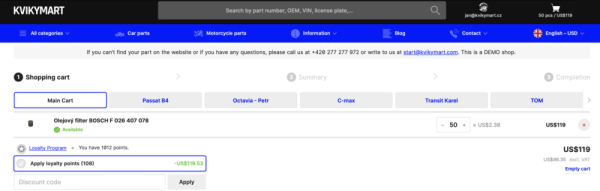
- With the loyalty program, your customers can collect loyalty points and use them for a discount.
- Customers can use the loyalty points on the next order.
- Loyalty points don't expire.
- Customers apply loyalty points by clicking the checkbox "Apply points" in their shopping cart.
1. How to activate the loyalty program?
- In the administration in the part Settings -> Modules find the module Loyalty program and click on the Get module button.
- This will pre-fill email with monthly price approval and request for activation. E-mail send us at info@kvik.shop.
- We will add part Loyalty program in the administration in the Settings. After that, we will contact you.
- For the complete finishing of module activation you have to:
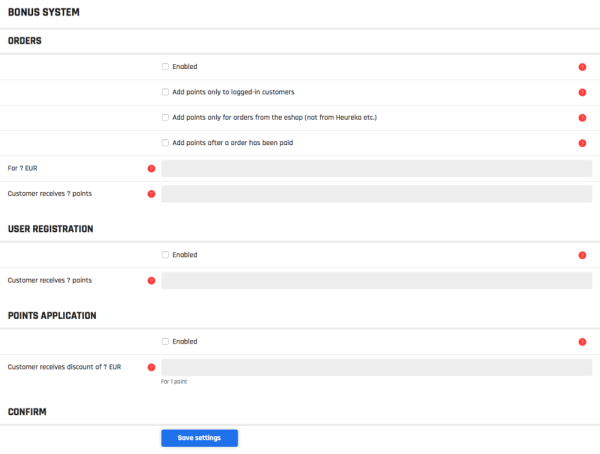
- Set the values in the part Loyalty program, see in the picture below. We recommend you don't check the checkbox Enabled. This temporarily disables the collecting of points. Customers wouldn't be able to redeem them until the loyalty program is fully launched.
- Fill in how the loyalty program works in our prepared Loyalty program article.
- After you finish the 4. point, you can enable collecting loyalty points and activate the article.
- Due to activate the article, customers can see their status of loyalty points after logging in.
- Activation is completely done.
2. Collecting of loyalty points
- Customers can collect loyalty points by three-way:
- Registration
- By manual crediting in administration (by you)
- On the customer's profile detail, on the Loyalty points button.
- From the order
- You can choose a variant when loyalty points should be added, by the Add points after an order has been paid button.
- The checkbox isn't ticked off = Loyalty points are added after the order is created.
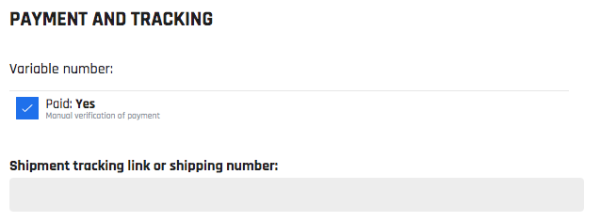
- The checkbox is ticked off = Loyalty points are added after you tick off that the order is paid. You can do that on the order detail by ticked off the Paid button, see in a screen below.
- You can choose a variant when loyalty points should be added, by the Add points after an order has been paid button.
3. How to check the status of the customer's loyalty points?
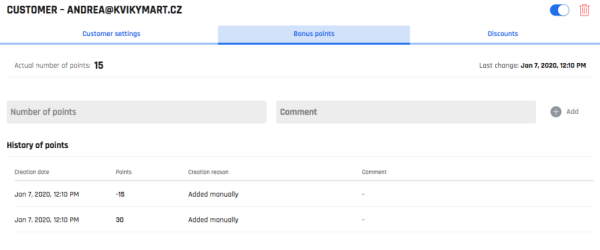
- On the Customers tab, in the detail of individual customers, the Loyalty points tab you can see:
- The actual number of points
- A field for manually assigning loyalty points
- History of points
4. Deleting of loyalty points
- The points you can delete in the detail of individual customers, on the Loyalty points tab, see the screen above.
- Insert a negative value in the Numbers of points field (for example -10).
- Points are deducted and you can see the record in the History of points section, as shown above.
5. Displaying the loyalty program to the customer
- The "Loyalty Program" page is used to explain the Loyalty Program.
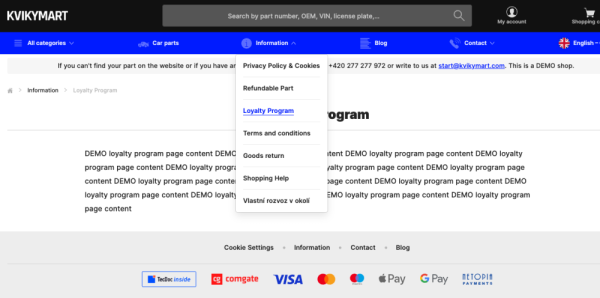
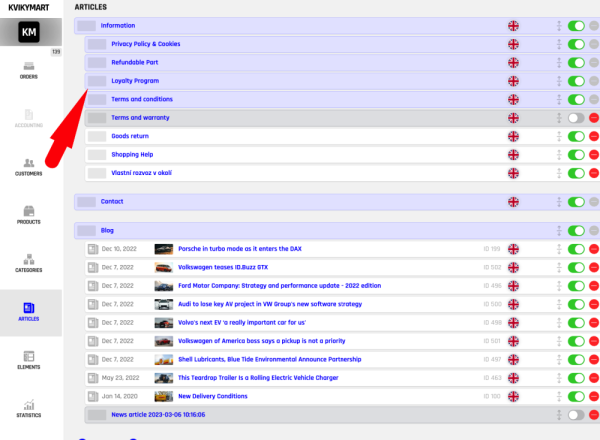
- You can edit the content of the "Loyalty program" page in the Administration section in the Articles section.
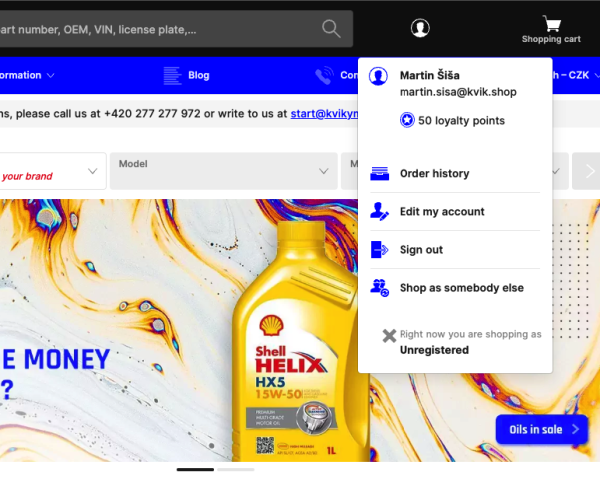
- The number of points is available to the customer by clicking on their customer account.
- This summary is available on every shop page.
- The customer can see the number of points and their conversion to money on the cart page.
- Here, the customer can check the checkbox to redeem his points.
- There is also a link to the "Loyalty Program" page, where the customer can get information about the loyalty program and the use of loyalty points.