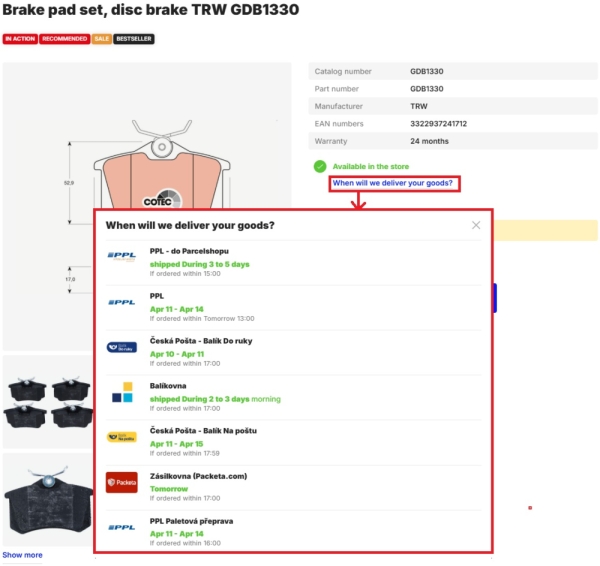
This module will allow your customers to see when exactly can which carrier deliver the product to them.
Settings
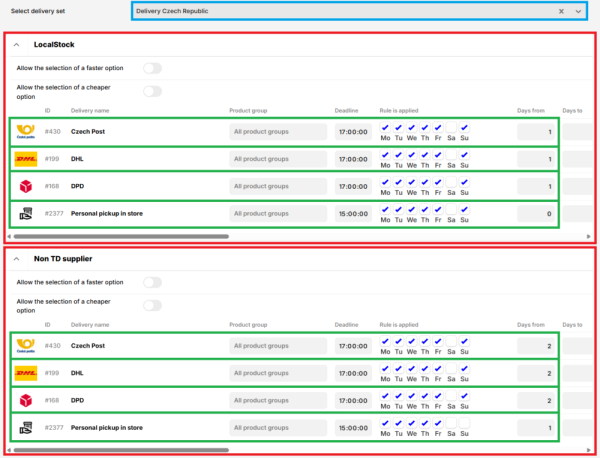
Navigate to Settings > Modules > Delivery Dates and select the supplier from the list. https:// SHOP_NAME /admin/settings/deliveryDateTime
This module allows you to set exact delivery times for individual suppliers (red) and delivery methods (green). Delivery times can be set separately for individual delivery sets (blue).
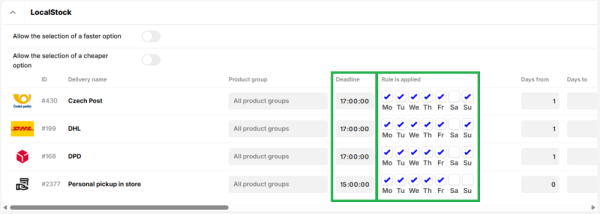
Deadline
This indicates the time by which the order must be placed for the settings to apply. If the order is placed after this deadline, 1 is added to Days from/to.
Rule is applied
Here you can set which days the given setting is active for. For example, if you are closed on Saturdays and therefore know that you will not be despatching orders to be delivered the following day, you need to leave Saturday blank here – the delivery time will then be calculated as if the order had been placed the following day. If you offer personal pickup and are closed on weekends, you will probably want to skip both Saturday and Sunday for this delivery method.
Days from/Days to
Here you need to set the minimum and maximum number of days it takes to deliver an order. For standard next-day delivery, the "Days from" column will be 1. In the case of personal pickup, for example, where you prepare the goods for pickup on the same day, you can enter 0.
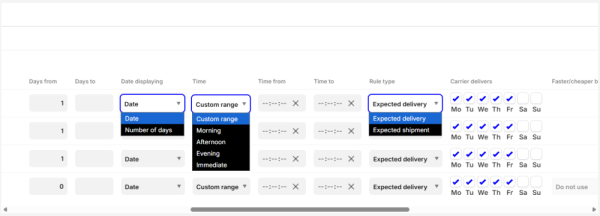
Date displaying
The date can be displayed either using the date format (e.g., 1.1.2025) or using the number of days (until 2 days).
Time
If you select the "Custom range" option, you need to select Time from and Time to in the following two columns – this time range will then be displayed as the range in which the goods will be delivered/ready for pickup. Other options are not to display the exact time range, but for example Immediate, Morning, Afternoon, or Evening.
Rule type
Here you can set whether the estimated time will be displayed as the estimated delivery time or the shipment/despatch shipping time.
Carrier delivers
In this column, you can mark the days on which the carrier does not deliver goods.
Adding a carrier row
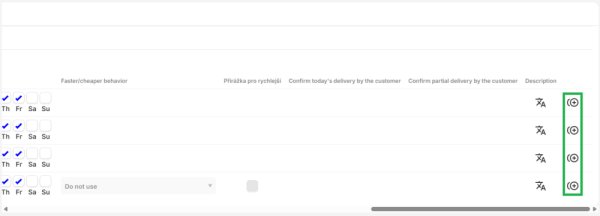
This option allows you to add a new row for a given carrier/delivery method. In it, you can specify specific behaviour, for example, for selected product groups, which you can select in the ‘Product group’ column.
FAQ
Does the module take into account bank holidays?
You can set days on which you are closed in Settings -> Closed Days. The module will then take this settings into account when calculating delivery time.