Brands
How to use the platformThese are product brands as officially named by the manufacturer.
You can prioritize brands by moving them to the top of the list. You can do this either by changing the sequence number.
1. Activation of new TecDoc brands on the e-shop
- You should first let to enable new tags by contacting your TecDoc representative.
- After the TecDoc finished the process, changes will be reflected in the e-shop within three days at the latest.
- The display of newly enabled products is dependent on the suppliers' data import side. How to do this is described below.
2. How to display the products of newly allowed brands in the e-shop?
- Re-importing already implemented suppliers who already have products with new brands in their data.
- In this case, we have to reimport it manually on our side.
- We solve the processing as an individual requirement. Please, inform us by e-mail at info@kvik.shop.
- Please, check which suppliers should be reimport and send to us information.
- Importing of a new supplier.
- It is necessary to wait for the import of newly approved brands on both the TecDoc side and the e-shop side, see description Activation of new TecDoc brands on the e-shop.
- In this case, our intervention will not be necessary and the products will be displayed in the e-shop automatically after import.
3. Disabling of brands
- TecDoc brand - You have two options, see below:
- Contact your TecDoc representative to deactivate the brands.
- Then we have to disable the products of these brands on our side.
- We solve the processing as an individual requirement. Please, inform us by e-mail at info@kvik.shop.
- Contact suppliers to remove products of these brands from the supplied data.
- After supplies removal and reimport, the supplies of these suppliers cannot be ordered.
- Contact your TecDoc representative to deactivate the brands.
- NonTecDoc brand
- Contact suppliers to remove products of these brands from the supplied data.
- After supplies removal and reimport, the supplies of these suppliers cannot be ordered.
- Contact suppliers to remove products of these brands from the supplied data.
- TecDoc and NonTecDoc
- You can find the products of these brands in your administration and disable them manually. However, if suppliers add new products to these brands, they will still be imported.
4. Icon
- Icons can be added to individual brands
- The brand icon will be displayed on the main image of the brand's products in the upper right corner
- The icon will not be displayed on images exported to feeds
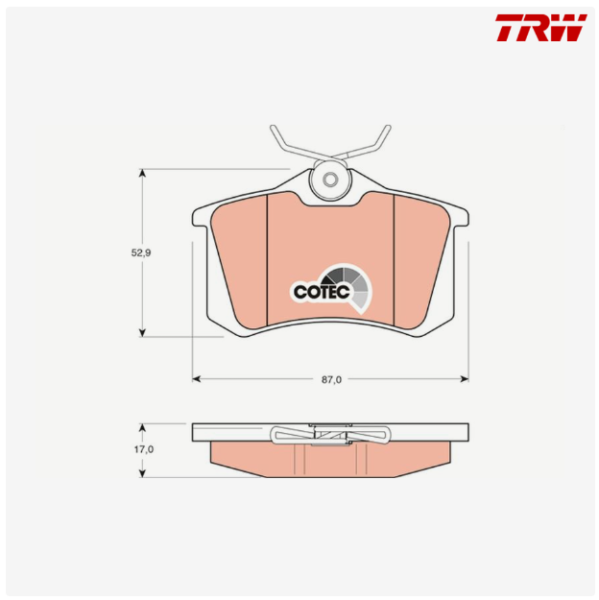
5. Illustrative image
- You can add an illustrative image to brands.
- The illustrative image will be used for products that do not have their own image.
- Illustrative images are not exported to feeds.
6. Merging brands
Brands can be automatically merged together. Suppliers often use different names for the exact same brand (for example, "OE Ford" and "Ford Original"). Merging them helps keep your store organized.
How to merge brands:
- Navigate to the admin/products/brands section.
- Click on the black icon with three dots (action menu) next to the brand you want to modify.
- Select the "Merge or rename" option from the dropdown.
- Choose the Original brand name and the New brand name.
- Click the "Start renaming" button.
After completing these steps, the selected brands will be successfully merged into one.