Google Analytics can be integrated in two ways. Technical specification of Google Analytics implementation on a KVIKYMART is described here: docs.kvikymart.com/#/en/marketing/google-analytics
- By entering the code in the admin interface (Settings - Interconnection - Google Analytics ID)
- Integration via Google Tag manager
How to create Google Analytics (Universal Analytics)
To create Google Analytics Property you need to have a Google account. If you have created an e-mail at @gmail.com, this is also the account that can be used to create a Google Analytics Property.
Follow the steps below to create a Google Analytics Property:
- On the analytics.google.com page, click on the settings icon and then select "Create Account" in the "Account" column.
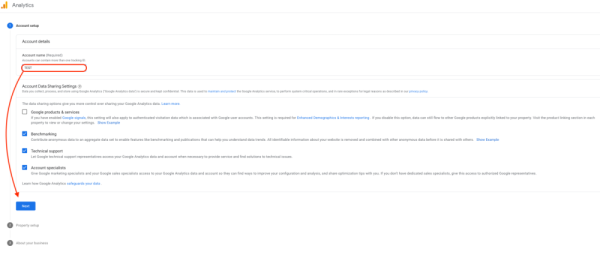
- Enter your name of the account, configure the data-sharing setting with Google and confirm by clicking on "Next".
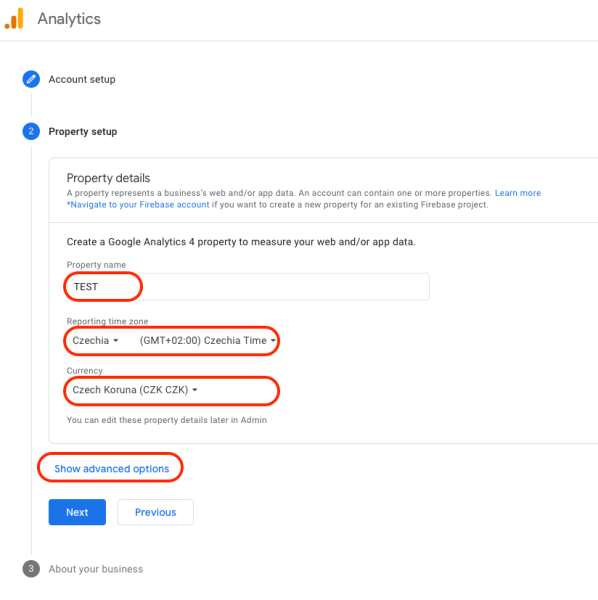
- Choose the time zone, currency and click "Show advances options" (below the property-setup fields).
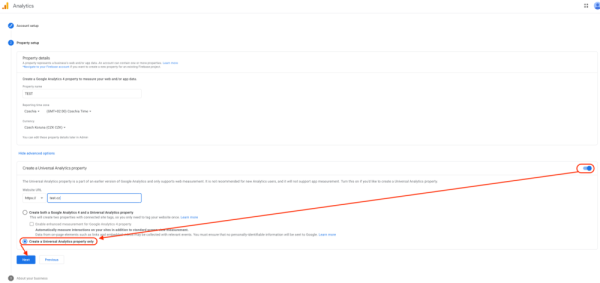
- Turn on the switch for "Create a Universal Analytics property" and click on "Next".
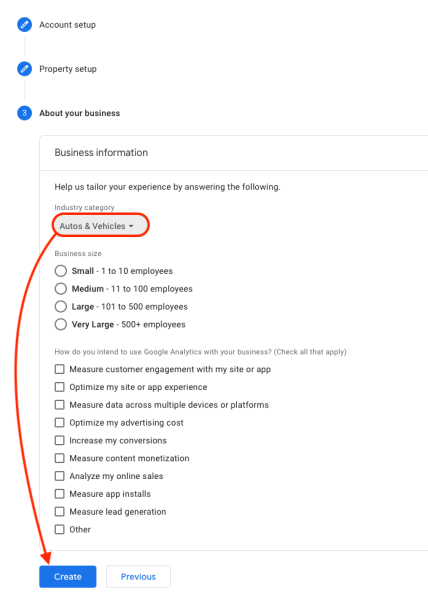
- Enter the website URL and provide information about your business and click on "Create".
- Accept the Analytics Terms of Service and the Data Processing Amendment and click on "Finish".
- The Google Analytics ID that you need to enter in the admin interface will be displayed.
- In the "View settings" tab, turn on "Do track site search", insert "search" in the "Query parameter" field and check "Stop query parameters of URL".
- Enable Ecommerce in the "Ecommerce settings" and enable enhanced eCommerce reporting and confirm by clicking on "Submit".
After entering the Google Analytics ID in the admin interface, you will see already measured data in Google Analytics.