1. How do I recognize when the supplier supply was last imported?
The picture below shows information about importing supplier data. The picture is displayed on the details of every product after you sign in like an administrator.

- Number 1. shows the date when the supply was changed in the supplier file at the last time
- Number 2. shows the date when the price was changed in the supplier file at the last time
- Number 3. shows the date when the whole file was changed by the supplier
2. How to solve the issues in the import data?
If you find out an issue in the importing data:
Firstly please compare the state on the e-shop with the state in the supplier's data. You always have access to supplier data, for example, across our FTP, FTP of the supplier, by link or by web service. If you lost your access please inform suppliers or us on e-mail support@kvikymart.cz and we provide that to you.
- If after checking the state in the data corresponds to the status of the e-shop, but you are sure it should be different, please contact the supplier.
- If the data on the e-shop are different versus data in the supplier file, please check first:
- Check if the product hasn't been bought on this day.
- When was the last time a supplier updated their file/data (for example, to FTP).
- Check if automatic data import isn't in progress.
If the product hasn't been bought and the import finished after that you can contact us on e-mail support@kvikymart.cz. Always please send to us a link on the product (not printscreen) together with a row from the import file (not printscreen) and the name of the supplier.
For example:
Supplier:
XYZ
Link of the product (not printscreen):
"www.nazeveshopu.cz/produkt"
Row from the import file (not printscreen):
itemCode; brandName; tecdocBrandId; itemName; purchasePrice(CZK); stockAvailability;
12345; TEST.; 10; Test; 100; 3;
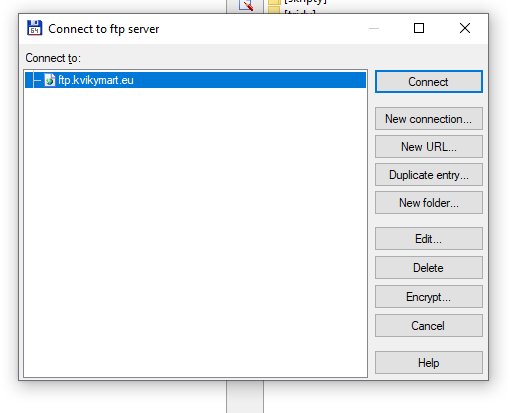
3. How to login on FTP via Total commander?
- Start the program Total Commander.
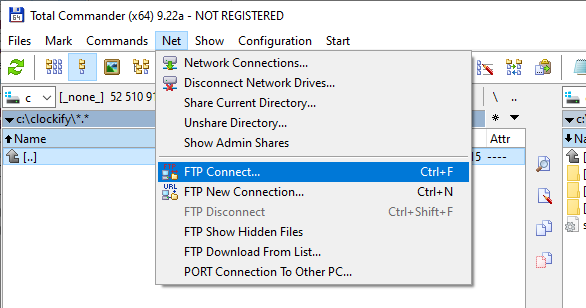
- After that click up on the Net
- Choose FTP Connection - new connection.
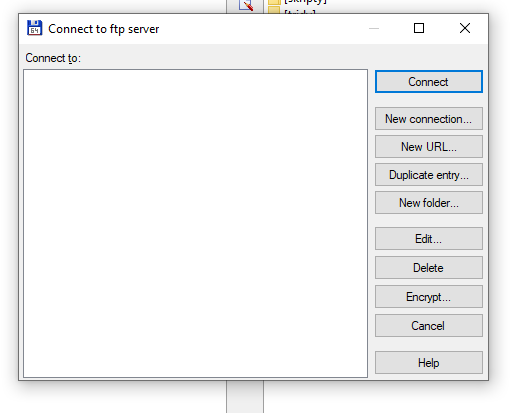
- In the window with connection to the FTP server displayed, click on New connection.
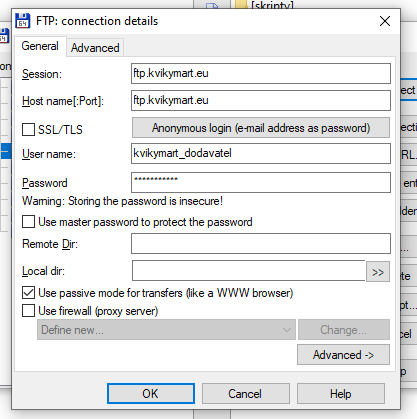
- A new connection setup window appears.
- Fill in the name of the FTP server to the Session input (for example ftp.kvikymart.eu).
- Fill in the same value as in the previous input to the Host name input (in our case ftp.kvikymart.eu).
- Fill in the name of FTP account to the User name input (for example kvikymart_dodavatel).
- Fill in the password of account to the Password input.
- Press OK to confirm.
- Next, just click the New connection button and you will be connected to FTP where the files/data of the suppliers are stored.